
A tour of the window
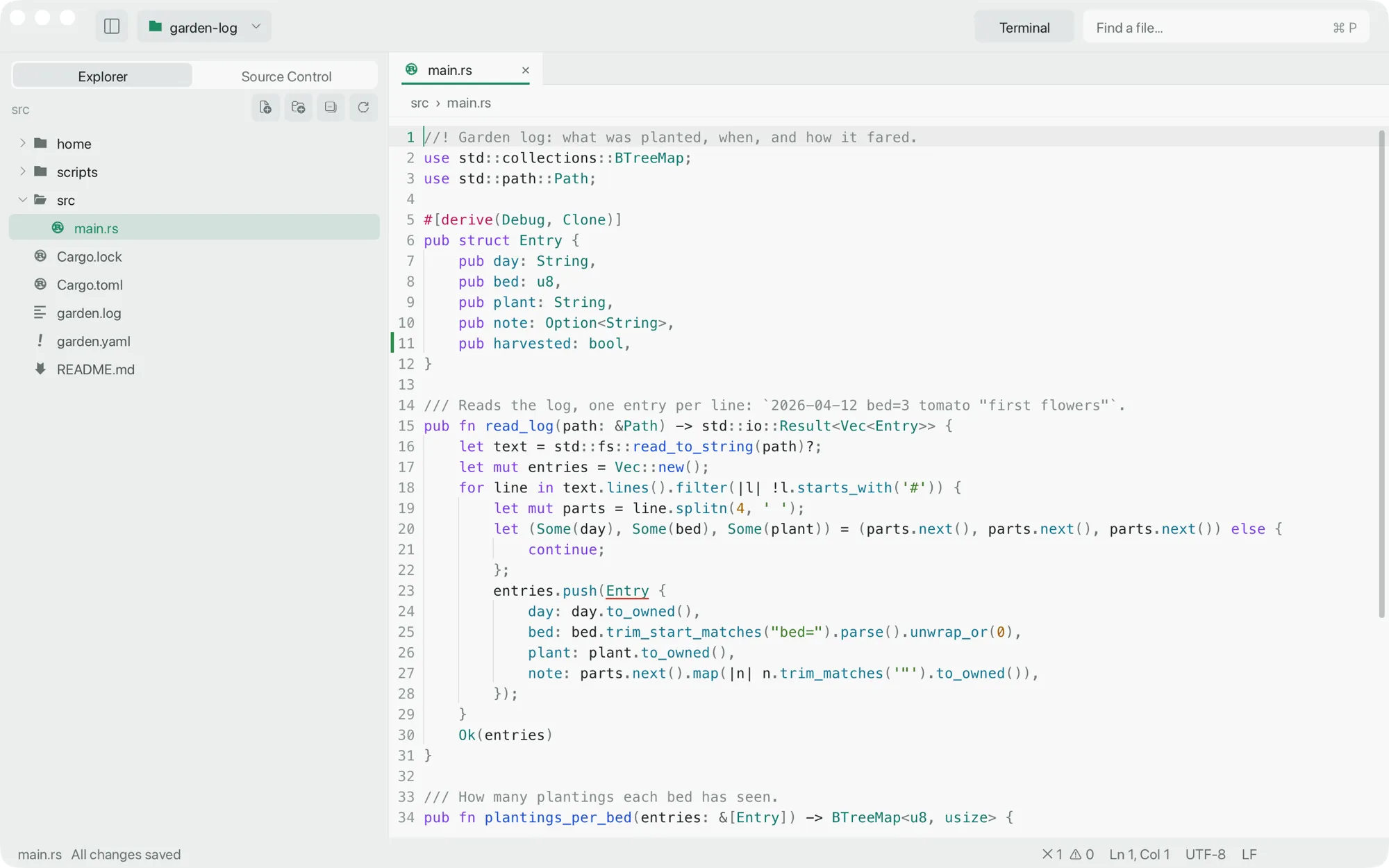
crc is one window per project. The text is drawn by crc itself on the GPU; around it is native macOS chrome in the system font, in light and dark, with the right pointer for every control.
The home screen
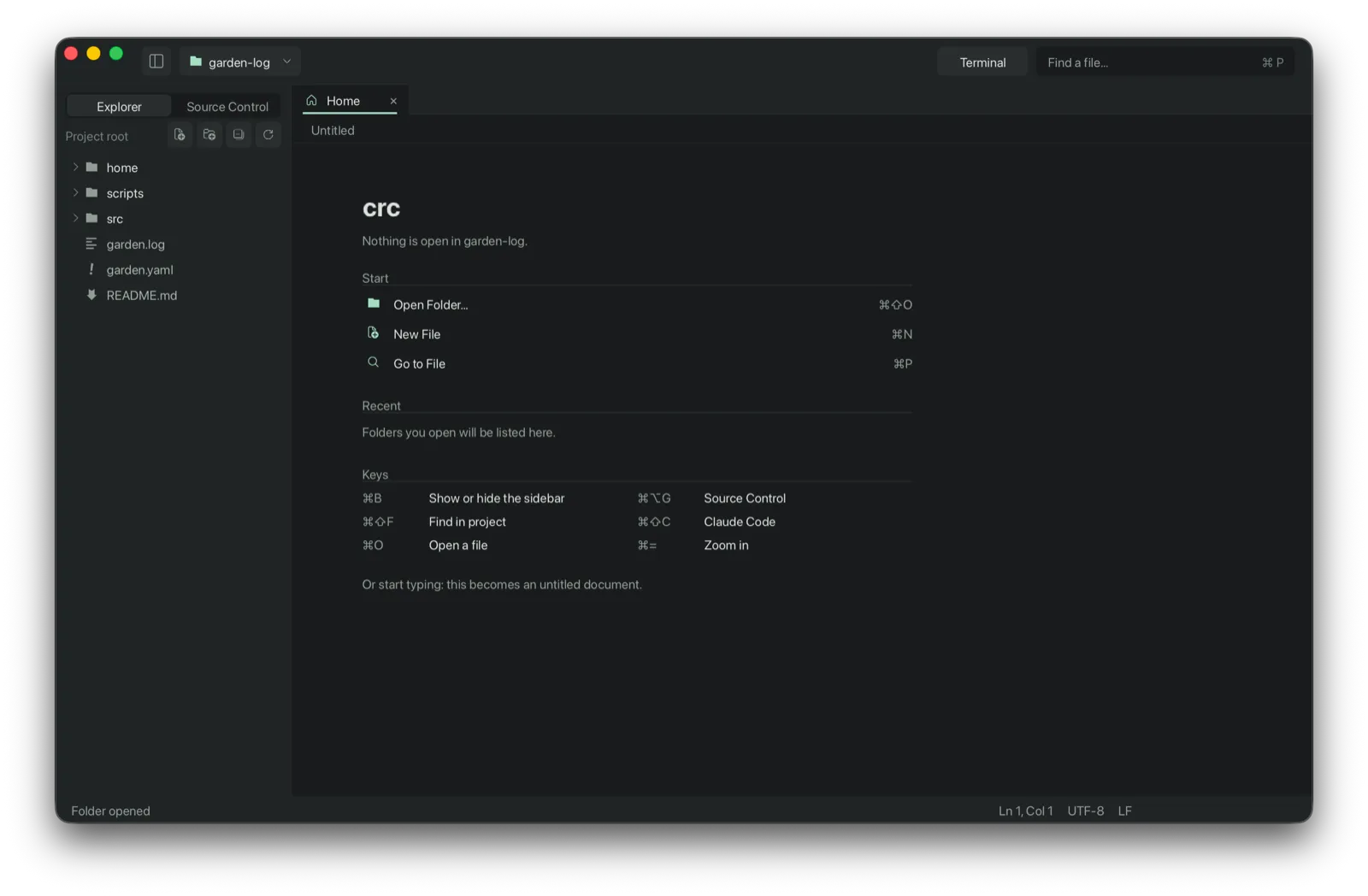
Section titled “The home screen”Open a folder with nothing else open and crc shows its home screen: Start actions (Open Folder, New File, Go to File), your Recent folders, and a short list of keys worth learning first. Start typing and it becomes an untitled document.
The editor
Section titled “The editor”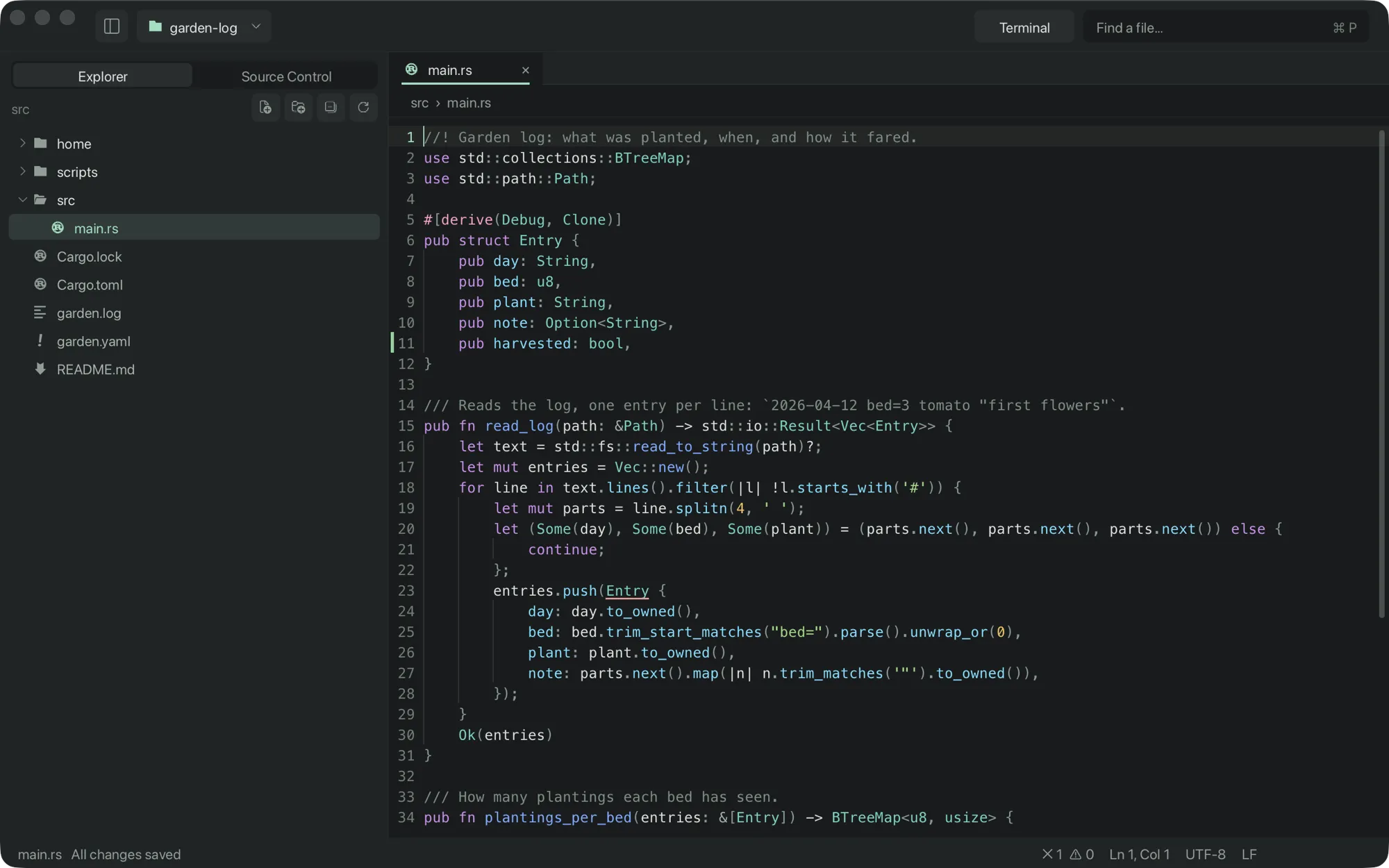
From the top of the window down:
- The toolbar holds the sidebar toggle, the project menu, the Terminal button and Find a file…, which is the same box as ⌘P.
- The icon strip at the far left picks what the sidebar shows: Explorer, the file tree, with buttons for a new file, a new folder, collapse and refresh; Source Control, the Git panel, with a badge counting changed files; and Extensions, the extensions list. Clicking the panel that is already showing hides the sidebar, and clicking it again brings it back; the strip stays. ⌘B hides and shows the sidebar too.
- Tabs sit above the editor with a breadcrumb of the file’s path under them. See Tabs and split panes.
- The gutter shows line numbers and marks lines that differ from Git’s HEAD: added, changed and deleted.
- The status line at the bottom says whether the file is saved, the error
and warning counts from the language server, who last changed the caret’s
line (from
git blame), the branch, the caret position, the encoding and the line ending.
The panel
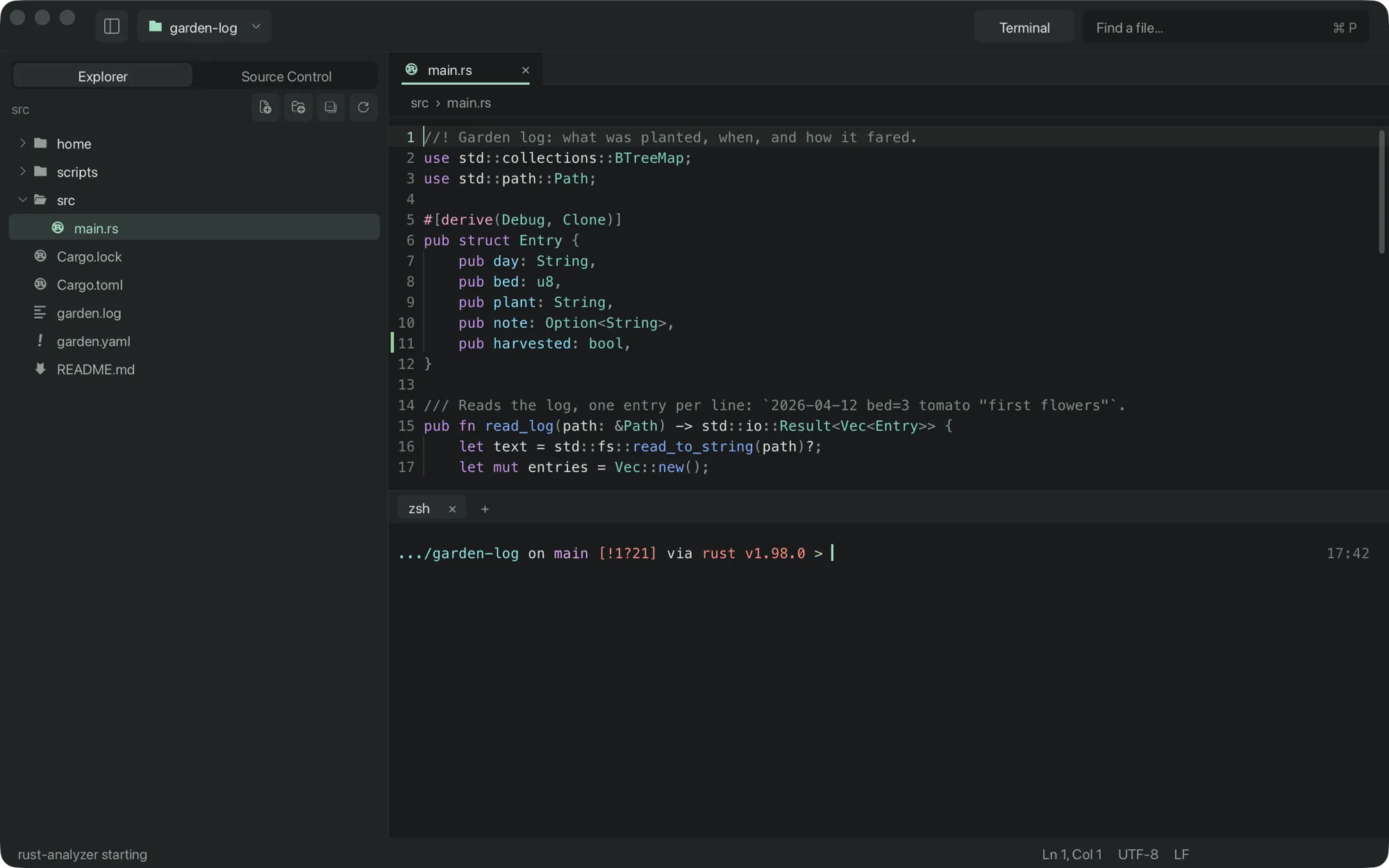
Section titled “The panel”⌃` or ⌘J opens the terminal under the editor.
Right-click
Section titled “Right-click”The Explorer’s context menu creates files and folders, renames, moves to the Trash and reveals in Finder. Right-click a tab to manage tabs.